About secrets for GitHub Codespaces
You can add development environment secrets to your personal account that you want to use in your codespaces. For example, you may want to store and access the following sensitive information as secrets:
- Access tokens to cloud services
- Service principals
- Subscription identifiers
- Credentials for a private image registry (for more information, see Allowing your codespace to access a private registry)
You can choose which repositories should have access to each secret. Then, you can use the secret in any codespace you create for a repository that has access to the secret. To share a secret with a codespace created from a template, you will need to publish the codespace to a repository on GitHub, then give that repository access to the secret.
Once you have created a secret, it will be available when you create a new codespace or restart the codespace. If you've created a secret on GitHub and you want to use it in a currently running codespace, stop the codespace and then restart it. For information about stopping the codespace, see Using the Visual Studio Code Command Palette in GitHub Codespaces.
Naming secrets
The following rules apply to secret names:
- Secret names can only contain alphanumeric characters (
[a-z],[A-Z],[0-9]) or underscores (_). Spaces are not allowed. - Secret names must not start with the
GITHUB_prefix. - Secret names must not start with a number.
- Secret names are not case-sensitive.
- Secret names must be unique at the level they are created at. For example, a secret created at the repository level must have a unique name in that repository.
If a secret with the same name exists at multiple levels, the secret at the lowest level takes precedence. For example, if an organization-level secret has the same name as a repository-level secret, then the repository-level secret takes precedence.
Limits for secrets
You can store up to 100 secrets for GitHub Codespaces.
Secrets are limited to 48 KB in size.
Adding a secret
-
In the upper-right corner of any page on GitHub, click your profile picture, then click Settings.
-
In the sidebar, under "Code, planning, and automation", click Codespaces.
-
To the right of "Codespaces secrets", click New secret.
-
Under "Name," type a name for your secret.
-
Under "Value", type the value of your secret.
-
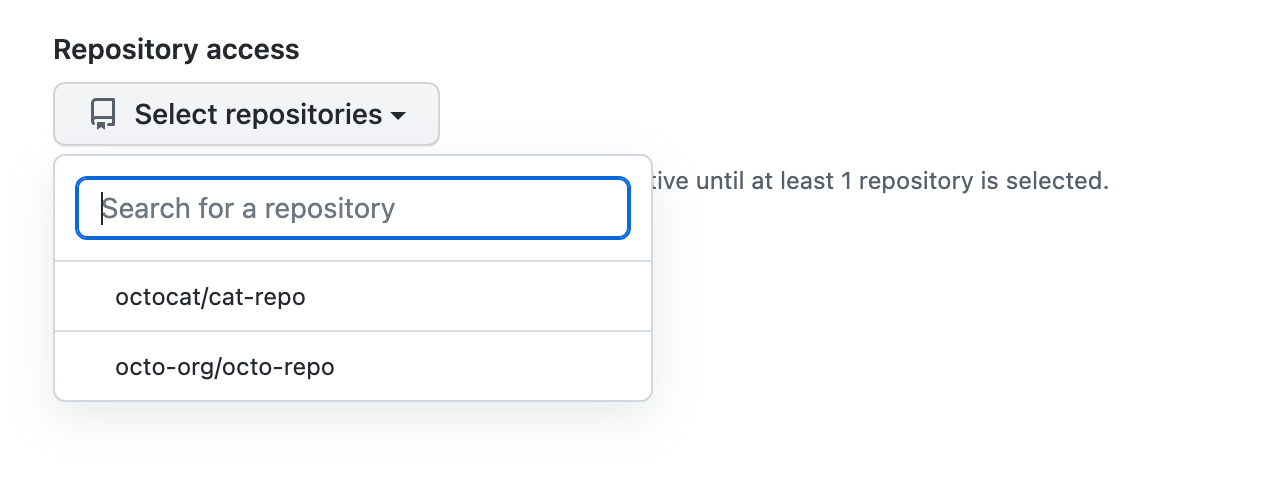
Select the "Repository access" drop-down menu, then click a repository you want to have access to the secret. Repeat for every repository you want to have access to the secret.
-
Click Add secret.

Editing a secret
You can update the value of an existing secret, and you can change which repositories can access a secret.
-
In the upper-right corner of any page on GitHub, click your profile picture, then click Settings.
-
In the sidebar, under "Code, planning, and automation", click Codespaces.
-
Under "Codespaces secrets," to the right of the secret you want to edit, click Update.
-
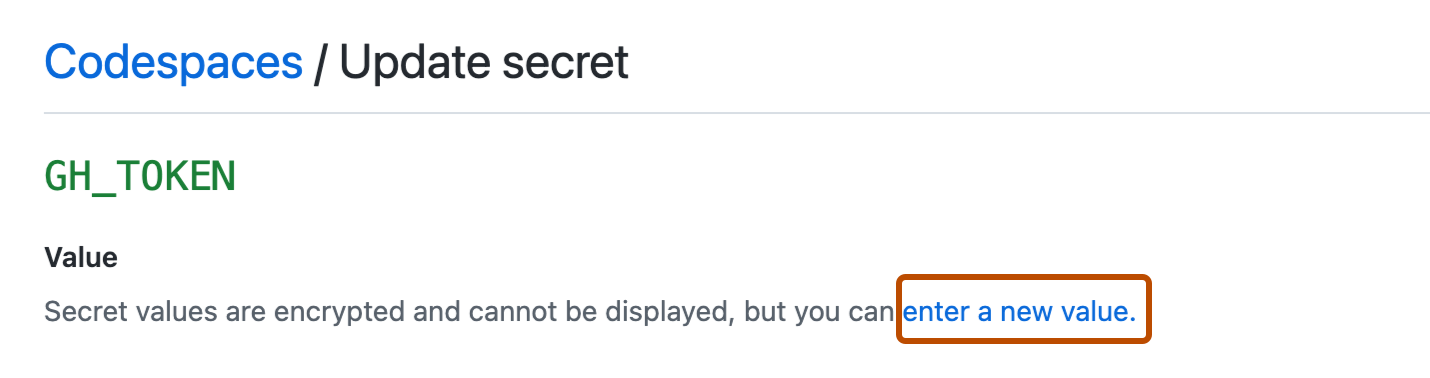
Under "Value," click the link "enter a new value."
-
Under "Value", type the value of your secret.
-
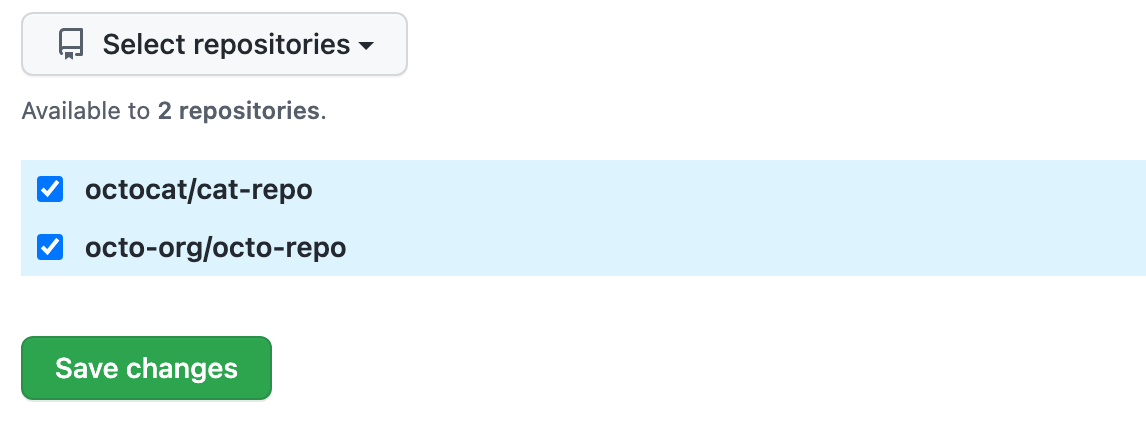
Select the "Repository access" drop-down menu, then click a repository you want to have access to the secret. Repeat for every repository you want to have access to the secret.
-
Optionally, to remove the secret's access to a repository, deselect the repository.
-
Click Save changes.


Deleting a secret
- In the upper-right corner of any page on GitHub, click your profile picture, then click Settings.
- In the sidebar, under "Code, planning, and automation", click Codespaces.
- Under "Codespaces secrets," to the right of the secret you want to delete, click Delete.
- Read the warning, then click OK.
Managing secrets from inside a codespace
The GITHUB_TOKEN that GitHub Codespaces provides in a codespace can't manage your account-specific Codespaces secrets. You can't use this token to list, add, update, or delete these secrets, to get the public key used to encrypt them, or to change which repositories can access them. This restriction doesn't affect repository or organization secrets, or how your secrets are added to your codespaces as environment variables.
To manage your account-specific secrets, we recommend using your Codespaces settings in a browser. See Adding a secret.
If you want to manage these secrets from a codespace terminal, for example with GitHub CLI, you must use a credential that you authorize separately. The credential needs permission to manage your Codespaces secrets:
- OAuth app tokens and personal access tokens (classic): The
codespacescope. The followinggh auth logincommand requests this scope in addition to the scopes that GitHub CLI always requests:repo,read:org, andgist. The resulting token can access your repositories, read your organization memberships, and manage your gists, as well as your Codespaces secrets. If you don't want to make this access available in the codespace, use your Codespaces settings in a browser, or manage your secrets from a trusted local machine. - Fine-grained personal access tokens: The "Codespaces user secrets" account permission, with write access. To give repositories access to a secret, the token must also include each of those repositories, with the "Codespaces secrets" repository permission. If you update a secret that repositories can already access, the token needs this access to each of those repositories too.
Warning
When you authorize a credential in a codespace, code running in that codespace, such as dependencies, extensions, and lifecycle scripts, can use the credential. Only authorize a credential in a codespace if you trust all the code that runs in it. Otherwise, use your Codespaces settings in a browser, or manage your secrets from a trusted local machine.
GitHub CLI uses the GH_TOKEN environment variable first, then GITHUB_TOKEN, and only then the credentials stored by gh auth login. Because a codespace sets GITHUB_TOKEN, running gh auth login on its own isn't enough. On Linux, you can unset these variables for a single command, without removing them from your codespace environment.
-
In the terminal, authenticate GitHub CLI with the
codespacescope.Shell env -u GH_TOKEN -u GITHUB_TOKEN gh auth login --hostname github.com --web --scopes codespace
env -u GH_TOKEN -u GITHUB_TOKEN gh auth login --hostname github.com --web --scopes codespaceIf GitHub CLI asks for your preferred protocol for Git operations, choose HTTPS. When it asks whether to authenticate Git with your GitHub credentials, answer No. If you answer yes, the token can be saved to a Git credential helper, and
gh auth logoutdoesn't remove it from there. -
Run the
gh secretcommand you need with the--userflag, again unsetting the environment variables for that command. For example, to add or update a secret and give a repository access to it, run the following command, replacingSECRET-NAMEandOWNER/REPO. To give more than one repository access, use a comma-separated list of repositories, each in theOWNER/REPOformat. GitHub CLI prompts you for the secret value.Shell env -u GH_TOKEN -u GITHUB_TOKEN gh secret set SECRET-NAME --user --repos OWNER/REPO
env -u GH_TOKEN -u GITHUB_TOKEN gh secret set SECRET-NAME --user --repos OWNER/REPOTo list your secrets, run
env -u GH_TOKEN -u GITHUB_TOKEN gh secret list --user. -
When you've finished, remove the stored credential from the codespace. Replace
USERNAMEwith your GitHub username.Shell env -u GH_TOKEN -u GITHUB_TOKEN gh auth logout --hostname github.com --user USERNAME
env -u GH_TOKEN -u GITHUB_TOKEN gh auth logout --hostname github.com --user USERNAMESigning out only removes the credential that GitHub CLI stored in the codespace. If you had already signed in to GitHub CLI in the codespace with the same account and hostname, signing in again replaced that stored credential, and signing out doesn't restore your previous sign-in.
Signing out doesn't revoke the token, so it doesn't protect you if code in the codespace has already copied the credential. If you think a credential might have been exposed, you can revoke your authorization for GitHub CLI. Revoking the authorization invalidates all GitHub CLI tokens that it granted, so you may also be signed out of GitHub CLI on other machines, including your local machine. See Reviewing your authorized OAuth apps.
Warning
Don't include a secret value or a token in a command. Commands can be saved in your shell history and are visible to other processes.
Connecting to an enterprise on GHE.com
If you access GitHub through a subdomain of GHE.com, such as SUBDOMAIN.ghe.com, use the following commands instead of the commands in the previous steps. Replace SUBDOMAIN with your enterprise's subdomain.
-
Authenticate GitHub CLI with your enterprise's hostname.
Shell env -u GH_TOKEN -u GITHUB_TOKEN gh auth login --hostname SUBDOMAIN.ghe.com --web --scopes codespace
env -u GH_TOKEN -u GITHUB_TOKEN gh auth login --hostname SUBDOMAIN.ghe.com --web --scopes codespace -
Set
GH_HOSTin eachgh secretcommand, so that GitHub CLI uses your enterprise's subdomain instead of GitHub.com.Shell env -u GH_TOKEN -u GITHUB_TOKEN GH_HOST=SUBDOMAIN.ghe.com gh secret set SECRET-NAME --user --repos OWNER/REPO env -u GH_TOKEN -u GITHUB_TOKEN GH_HOST=SUBDOMAIN.ghe.com gh secret list --user
env -u GH_TOKEN -u GITHUB_TOKEN GH_HOST=SUBDOMAIN.ghe.com gh secret set SECRET-NAME --user --repos OWNER/REPO env -u GH_TOKEN -u GITHUB_TOKEN GH_HOST=SUBDOMAIN.ghe.com gh secret list --user -
When you've finished, sign out using the same hostname.
Shell env -u GH_TOKEN -u GITHUB_TOKEN gh auth logout --hostname SUBDOMAIN.ghe.com --user USERNAME
env -u GH_TOKEN -u GITHUB_TOKEN gh auth logout --hostname SUBDOMAIN.ghe.com --user USERNAME
Using secrets
A development environment secret is exported as an environment variable into the user's terminal session.

You can use development environment secrets after the codespace is built and is running. For example, a secret can be used:
- When launching an application from the integrated terminal or ssh session.
- Within a dev container lifecycle script that is run after the codespace is running. For more information about dev container lifecycle scripts, see the documentation on the Development Containers website: Specification.
Development environment secrets cannot be used:
- During codespace build time (that is, within a Dockerfile or custom entry point).
- Within a dev container feature. For more information, see the
featuresproperty in the dev containers specification on the Development Containers website.